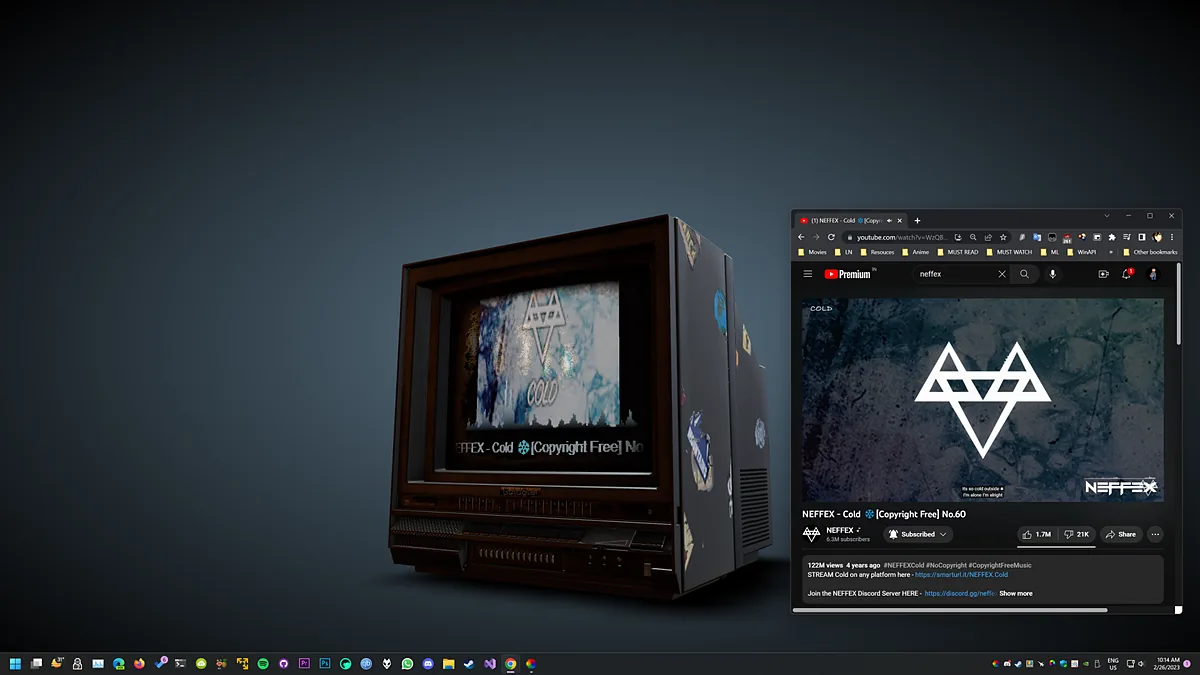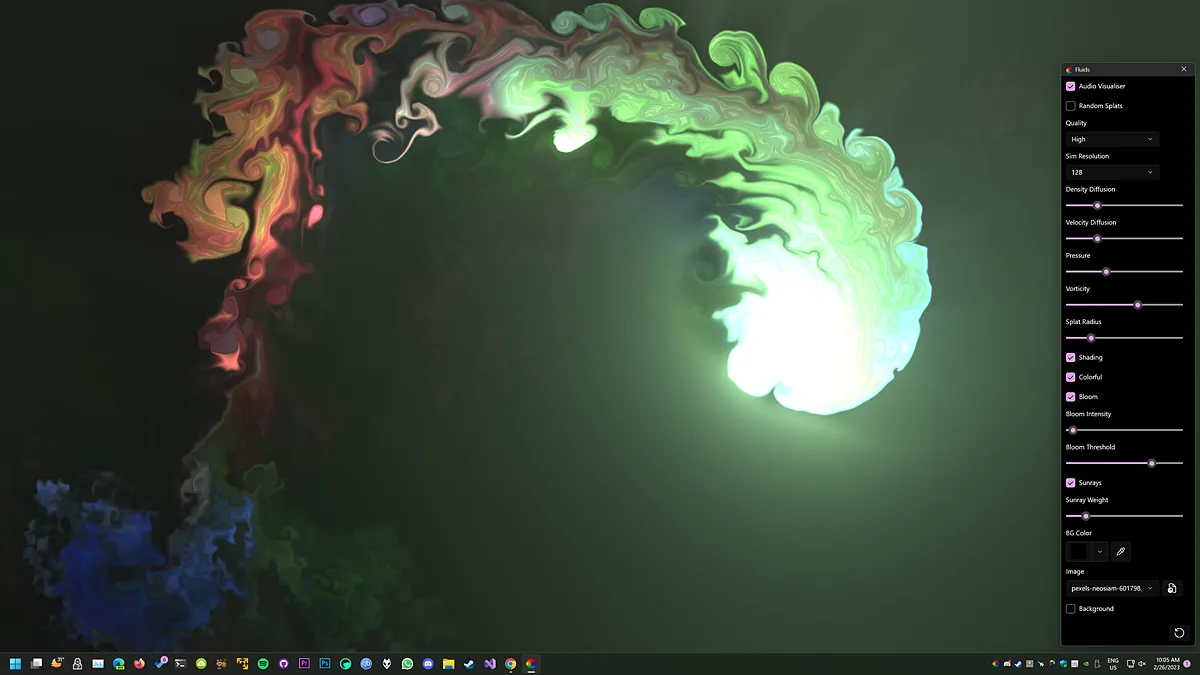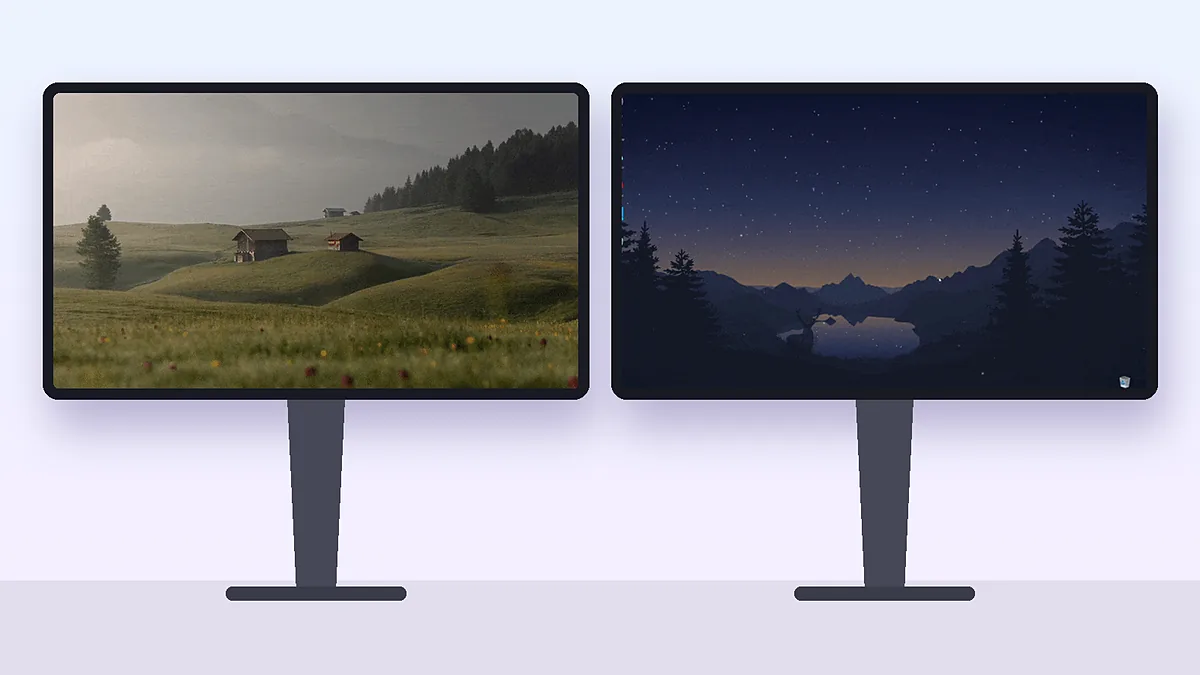
LivelyWallpaper dual monitor setups let each screen show its own animated scene or join both displays into one continuous picture. Multi-display support is built into the app, so there is no need for workarounds or separate tools. The key is understanding the three layouts and choosing files that suit your monitor arrangement.
This article explains per-screen, span and duplicate modes, how to handle screens with different resolutions, and how to keep two live wallpapers running smoothly at the same time.
The Three Wallpaper Layouts
Lively offers three arrangements for multiple displays. Each changes how a wallpaper is assigned when you apply it, and you can switch between them from the screen selector and layout options inside the app.
| Layout | What it does | Best for |
|---|---|---|
| Per screen | Each monitor gets its own wallpaper | Different moods on each display |
| Span | One wallpaper stretches across all displays | Panoramas and ultrawide artwork |
| Duplicate | The same wallpaper appears on every display | A uniform look with little effort |
Per Screen
Per screen is the most flexible option. You select a display, apply a wallpaper to it, then select the next display and repeat. A calm landscape on your main monitor and something more energetic on the side screen is a popular combination.
This mode also lets you mix wallpaper types. One screen can run a video while the other shows an interactive web scene or a lighter static picture, which helps balance resource use.
Span
Span treats all connected monitors as a single wide canvas. Lively stretches one wallpaper across the combined area, so a panoramic scene continues naturally from one screen to the next. Bezels split the image, yet the overall effect is impressive with landscapes and seascapes.
For the cleanest result, use a file whose width roughly equals the combined width of your displays. Two 1920 × 1080 monitors side by side form a 3840 × 1080 canvas, so a source close to that ratio avoids heavy cropping.
Duplicate
Duplicate mirrors one wallpaper onto every screen. It is the quickest way to give a multi-monitor desk a consistent theme. Because the same scene is drawn on each display, resource use is higher than a single screen, so lighter wallpapers work best in this mode.
Setting Up a Dual Monitor Wallpaper Step by Step
Start by confirming both monitors are active and arranged correctly in Windows display settings. Lively follows that arrangement, so a monitor placed on the wrong side in Windows will also be wrong in a spanned wallpaper.
- Open Lively and choose the screen selector near the top of the window
- Pick the layout you want: per screen, span or duplicate
- For per screen, select a display before applying each wallpaper
- Use Customise afterwards to fine-tune scaling or playback for each scene
Handling Mixed Resolutions and Orientations
Many desks combine different monitors, such as a 1440p main screen next to an older 1080p display, or a horizontal screen beside a vertical one. Per-screen mode handles these mixes best, because each wallpaper is scaled for its own display.
Spanning across mismatched monitors is possible, but the image may appear offset where heights differ. Aligning the top or bottom edges of the monitors in Windows display settings reduces the jump, and choosing artwork without strong horizontal lines makes any offset less noticeable.
Vertical Monitors
A portrait monitor needs a portrait wallpaper. Landscape clips placed on a vertical display either crop heavily or show bars. Looking for 1080 × 1920 or 1440 × 2560 sources, or using web wallpapers that adapt to any shape, gives a far better result.
Ideas for Great Dual Monitor Combinations
Pairing wallpapers thoughtfully makes a dual screen desk feel designed rather than random. Scenes that share a colour palette, such as a dusk landscape beside a starry sky, look cohesive even when they are different files. Contrasting a calm main screen with a lively secondary screen also works well.
Span mode rewards wide panoramic artwork. Coastlines, mountain ranges and city skylines continue naturally across the bezel, while busy centred compositions tend to split awkwardly in the middle where the two monitors meet.
- Matching palettes for a unified look across both screens
- A calm main screen with a more animated side display
- Wide panoramas or ultrawide loops for span mode
- An audio visualiser on the secondary screen for music sessions
Keeping Two Live Wallpapers Smooth
Running two animated wallpapers doubles the work compared with one. Modern hardware handles this comfortably with sensible files, while older integrated graphics may struggle with two 4K videos at once.
Lively's display pause rule helps. You can pause wallpapers on all screens when an application is maximised or only on the screen where that application is focused, keeping the second monitor animated while a game or video runs on the first.
- Use 1080p or 1440p sources unless your monitors are 4K
- Prefer 30 fps loops for secondary screens
- Combine one video wallpaper with one lighter web or picture wallpaper
- Keep pause rules enabled for fullscreen applications
Per screen gives the most control, span gives the most drama, and duplicate gives the fastest consistent look.
More on resolution choices is in the LivelyWallpaper 4K article, and the CPU and GPU usage article explains every performance option, including fullscreen pausing, battery rules and the different pause algorithms available for games.
Frequently Asked Questions
Yes. Choose the per-screen layout, select a display and apply a wallpaper, then repeat for the other display.
Switch the layout to span. Lively then draws the selected wallpaper across the combined area of all connected monitors.
With Start with Windows enabled, Lively restores your applied wallpapers when the app starts, provided the same monitors are connected.
Conclusion
LivelyWallpaper dual monitor setups are straightforward once you know the three layouts. Per screen suits mixed monitors and varied moods, span creates eye-catching panoramas, and duplicate delivers a matching look across the desk.
Match each file to its display, keep frame rates reasonable and use the display pause rule, and two animated screens will feel smooth, cohesive and enjoyable every day.