Download LivelyWallpaper for PC from the right place and the whole setup takes only a few minutes. Lively is free, open source and built for Windows 10 and Windows 11, with two official distribution channels: GitHub releases and the Microsoft Store. Choosing between them, installing correctly and setting a first wallpaper are all straightforward.
This walkthrough covers system requirements, the difference between the two editions, the installation process and the settings worth changing straight after setup, so your first live wallpaper runs smoothly from the very beginning.
Before You Download
Lively runs on Windows only. The project lists Windows 10 version 1903 or later for the standalone installer and Windows 10 version 1809 or later for the Microsoft Store edition, plus Windows 11. You can check your version by typing winver into the Start menu.
No official memory or graphics minimum is published. Lighter wallpapers run on modest laptops, while 4K video and complex web scenes benefit from a capable GPU with hardware video decoding.
| Item | What to check |
|---|---|
| Windows version | Windows 10 1903+ (installer), 1809+ (Store), or Windows 11 |
| Disk space | Enough room for the app plus any wallpapers you import |
| Graphics driver | An up-to-date driver for hardware video decoding |
| Account rights | Permission to install software on the PC |
Microsoft Store or Installer?
Both editions deliver the same wallpaper engine and features. The Microsoft Store version installs and updates through the Store, which suits people who prefer automatic updates and a familiar process.
The installer from GitHub releases is a standalone setup file. It is useful when the Microsoft Store is disabled, such as on some work PCs, or when you prefer to control exactly which version you run. The project maintains a wiki page explaining the differences between distributions in more detail.
- Microsoft Store: simple install, automatic updates
- GitHub installer: standalone file, works without the Store
- Both: free, open source and published by the Lively developers
Downloading From Official Sources
Official downloads come only from the project's GitHub page and its Microsoft Store listing. Third-party download sites may host outdated, repackaged or modified copies, so they are best avoided. The main download section on the livelywallpaper homepage links to the project's GitHub source.
On GitHub, ready-to-run installers appear under Releases rather than in the source code itself. Look for the setup file attached to the latest release and confirm its name matches the Lively project before running it.
Verifying What You Downloaded
Right-click the downloaded setup file, choose Properties and look at the Digital Signatures tab if one is present. Windows SmartScreen may display a warning for newer files; reading the publisher details before choosing to run the file is a sensible habit.
Installing Lively on Windows
Run the installer and follow the prompts. The process resembles any Windows program: accept the licence, choose a location if asked and wait for the files to copy. Microsoft Store users simply select Get or Install on the listing.
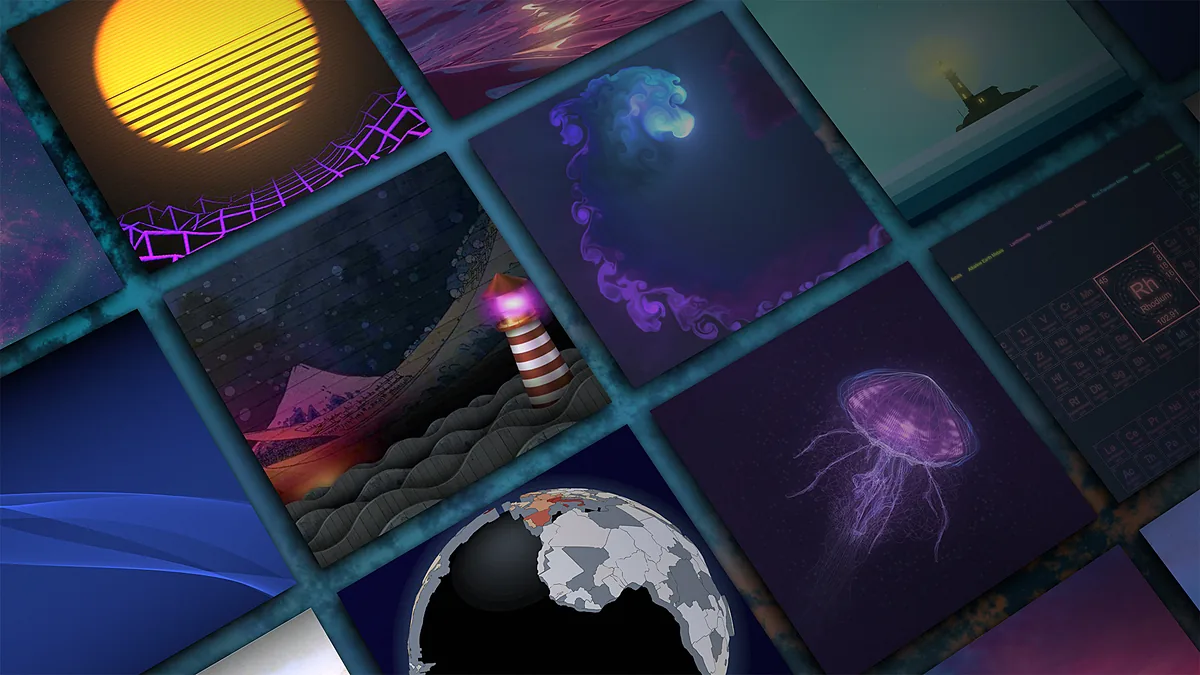
When installation finishes, Lively opens with its library of bundled wallpapers. A tray icon appears near the clock, giving quick access to the app, pausing and settings at any time.
- Run the setup file or install from the Microsoft Store
- Approve the user account control prompt if Windows shows one
- Launch Lively from the Start menu or tray icon
- Browse the library to preview the included wallpapers
Setting Your First Live Wallpaper
Pick a wallpaper from the library, choose the display and apply it. Your desktop starts moving immediately, with icons and the taskbar sitting on top as usual. Open Customise to adjust options for the selected wallpaper.
Adding your own content is just as quick. Select Add Wallpaper or drag a video, GIF or web address into the window, as described in the custom wallpapers article.
Exploring the Library
The bundled wallpapers are a good way to learn what Lively can do. Try a video scene, a web wallpaper and an interactive one, open Customise on each and notice how the options differ between types before importing your own media.
Settings to Check After Installing
A few settings make daily use smoother. Start with Windows keeps your wallpaper running after restarts, because Lively needs to run in the background for playback. Performance rules decide what happens when games, focused apps or battery power are involved.
| Setting | Recommended starting point |
|---|---|
| Start with Windows | On, if you want wallpapers after every restart |
| Applications fullscreen | Pause |
| When on battery power | Pause on laptops |
| Wallpaper volume | Low or muted |
If you ever want the classic desktop back, closing Lively from the tray restores your normal Windows wallpaper.
Updating, Uninstalling or Returning to a Static Desktop
Keeping Lively current brings fixes and improvements. Microsoft Store installs update automatically through the Store, while installer users can download the newest setup file from GitHub releases and run it over the existing installation.
Removing Lively is just as simple. Close the app from the tray icon, then open Settings, choose Apps and uninstall it like any other program. Your previous Windows wallpaper returns as soon as Lively stops running, so nothing else needs restoring.
- Store edition: updates arrive through the Microsoft Store
- Installer edition: run the newest release from GitHub
- Uninstall through Settings, then Apps, then Installed apps
- Closing Lively from the tray restores the normal background
Frequently Asked Questions
Downloading from the official GitHub releases or Microsoft Store listing is the safest approach, since both are published by the project itself.
No. The app is free and open source under GPL-3.0, with no paid edition or locked features.
Store installs update through the Microsoft Store, while installer users can download the newest setup file from GitHub releases.
Conclusion
Download LivelyWallpaper for PC from GitHub releases or the Microsoft Store, confirm your Windows version, and installation is quick and familiar. Both editions provide the same free, open-source wallpaper engine.
Set your first wallpaper, enable Start with Windows and review the performance rules, and your desktop will come to life without affecting games, battery life or daily work.